Fing - Network Tools
- 4.5
- Rating
- 50.00M
- Installs
- Free
- Price

 Analysis by App-foxy
I use network tools when something feels wrong but the cause is not obvious: a smart speaker disappears, a video call becomes unstable, or a new device appears on the home router. Fing is built for those moments. Developed by Fing Limited, this free Tools app helps me inspect the devices connected to a Wi-Fi network and look for clues such as unfamiliar equipment, possible vulnerabilities, and nearby hidden cameras.
It is not a replacement for a router’s full administration panel, and it cannot magically repair a weak connection. What it does well is turn a vague “my internet is acting strangely” problem into a clearer list of devices and checks. That makes it useful for ordinary households, remote workers, travelers, and anyone who wants a more understandable view of their network without starting with technical command-line utilities.
The app has been available since late 2010, works on Android devices running version 8.0 or later, and is suitable for Everyone. Its current version is 12.13.2. There is no upfront cost, although optional in-app purchases range from $0.99 to $69.99 per item, so I would look carefully at what is included before paying for anything.
You May Also Like

 Blood Strike: 2.5 Anniversary
Blood Strike’s Loadouts Turn Every Drop Into a Tactical Gamble
A close look at Blood Strike’s custom loadouts: how fast access to signature weapons reshapes its battle royale rhythm, rewards preparation, and narrows the gap between fights.

 Pandora - Music & Podcasts
Pandora’s Music Is Easy to Start, but Harder to Recover
Pandora’s strength is its low-effort path from a seed to a station. Its weak spot is how much confidence it asks you to place in connection, setup, and quiet recovery.

 8 Ball Pool
 Is Built on Rivalries, Rematches, and Routine
A close look at the rivalries, rematches, shared routines, and unanswered safety questions that turn a quick pool match into a persistent mobile community.

 Samsung Music
’s Quiet Strength Is Playing What You Already Own
Its reach comes less from spectacle than from dependable access to a personal library. That simplicity is both the app’s strongest retention engine and its ceiling.

 AccuWeather: Weather Radar
AccuWeather Review: A Quick, Clear Forecast for Everyday Decisions
For everyday plans, the best forecast is the one you can understand quickly. AccuWeather makes rain timing, radar, and local conditions easy to act on, with a few trade-offs.

 Hill Climb Racing
Why Hill Climb Racing Still Turns Crashes Into One More Run
A tiny car, a bumpy hill and one more upgrade: Hill Climb Racing keeps resurfacing because its simple chaos makes every near-miss feel personal.
More From Our News Desk
View All News


What happens when the network becomes the problem?
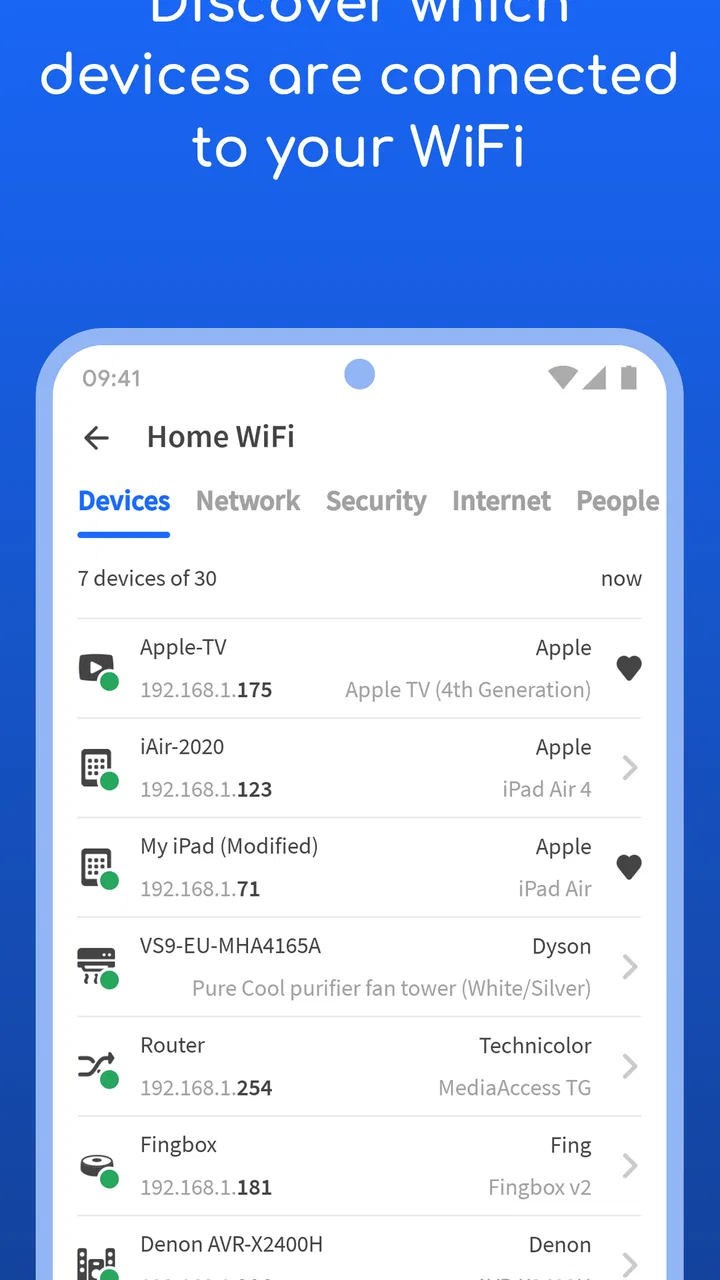
The first useful change is psychological: instead of guessing whether a neighbor, an old tablet, or a poorly configured gadget is consuming attention on the network, I can open the scan and inspect what is visible. A device list gives names and network identities a practical context. Even when the result needs interpretation, it is more useful than staring at a router light and hoping the connection recovers.
A realistic example is a busy evening at home. My laptop is connected, a television is streaming, a phone is uploading photos, and a smart plug has recently been installed. If the connection suddenly feels slow, Fing can help me check whether the new plug is present, whether the expected devices are still visible, and whether an unfamiliar entry deserves investigation. The result does not prove that a particular device is causing the slowdown, but it narrows the search.
That distinction matters. A network scan is an observation tool, not a verdict. An unknown device may belong to a guest, a game console with a generic name, or a device whose network identity changed. I would not disconnect equipment solely because its label looks unfamiliar. I first compare the list with the devices I own, ask people sharing the connection, and then use the router’s controls if a device genuinely needs to be removed.
Why the device list is more useful than it first appears
The practical strength is not simply seeing a number of connected devices. It is building a habit of recognition. After installing a new camera, printer, streaming box, or smart-home accessory, I can check whether it appears as expected. If it does not, the problem may be setup, signal, or network compatibility rather than an application issue. If it appears twice or under a confusing name, I have a reason to investigate before assuming the device is broken.
I also find the list helpful during household troubleshooting. When someone says the internet is down, I can check whether the phone is connected while another device is not. That separates a local device problem from a broader network problem. It is a small distinction, but it prevents the usual cycle of restarting every gadget in sight.
Fing is especially approachable for people who do not want to learn router terminology first. The interface presents network information in a more readable way than many manufacturer dashboards. Still, the app cannot identify every device perfectly. Generic hardware names and changing network identifiers can make the results less tidy than a beginner expects.
Checking for security concerns without overreacting
The security-oriented parts are useful as prompts for better habits. Seeing an unfamiliar device can encourage me to change a weak Wi-Fi password, review guest access, update connected hardware, or check the router’s settings. Vulnerability checks can also point attention toward equipment that deserves maintenance rather than being forgotten after installation.
However, I treat any warning as a starting point. A vulnerability notice needs context: which device is affected, whether its software is current, how it is exposed, and whether the router separates it from more sensitive equipment. Fing can make those questions visible, but it does not remove the need to read the device maker’s instructions or adjust the router itself.
The hidden-camera angle is another area where expectations should stay realistic. A network-based check may help identify suspicious connected equipment, but it cannot guarantee that a room is free from cameras. A camera that is not connected to the same network, is recording locally, or is powered off may not appear. I see this function as one layer in a broader privacy check, not a definitive inspection.
Using Fing away from the home desk
Mobile use is where the app makes the most sense. I can check a network while standing near a router, helping a family member, setting up a rental apartment, or trying to understand a hotel connection. A phone is easier to carry from room to room than a laptop, and the results are available at the moment a connectivity question appears.
That convenience also exposes an important limitation: the value of a network tool depends on the network it can actually inspect. When I am connected to a different Wi-Fi network, the device list describes that environment rather than my home setup. On public or shared networks, isolation can prevent devices from appearing normally, and that is not necessarily a fault in the app. It may be an intentional security design.
I would therefore use it carefully on networks I do not control. Scanning a hotel, café, workplace, or apartment building can produce confusing results and may not show the full picture. The safest use is diagnostic and personal: confirm my own connection, understand the devices I am authorized to manage, and avoid treating a shared network as if it were my private lab.
For travel, the app can still be useful in a limited way. If I connect a streaming stick or work laptop to temporary Wi-Fi, I can see whether the expected device is visible and whether the network behaves differently from home. But I would not use a scan as proof that a public network is safe. I would still avoid sensitive activity on questionable connections and rely on the security practices appropriate to the situation.
Connectivity shapes the whole experience
Because Fing examines network conditions, it naturally depends on an active connection and on what that connection permits the app to see. This is not an app I open for entertainment during a commute. Its useful moments happen when I am connected to a network and have a specific question about that network.
That makes the experience focused rather than universally convenient. If my phone is offline, the central purpose disappears. If the router is completely unavailable, the app cannot replace it. If the network blocks discovery, the scan may be incomplete. I prefer this honest limitation to an interface that presents a confident answer from partial information.
On a normal home Wi-Fi setup, the workflow feels straightforward: connect the phone, open the app, review the visible devices, and decide what deserves attention. My advice is to run it when the network is behaving normally as well as when something goes wrong. A normal baseline makes later changes easier to spot, especially after adding smart-home equipment.
What I do when the scan does not explain the problem
Failure recovery is where many network apps disappoint users, because discovery is only the first step. Fing can help me identify whether a device is present, but it does not turn a slow wireless signal into a fast one. If the scan looks normal and the connection still struggles, I move on to other checks: distance from the router, interference, the device’s own software, the internet service, and the router’s configuration.
I also restart selectively rather than everything at once. First I check the affected device. Then I compare it with another device on the same Wi-Fi. If only one device fails, the network may be fine. If several fail, I inspect the router and service connection. Fing is valuable here because it keeps me from confusing “the internet is slow” with “this particular device is not communicating properly.”
When an unfamiliar device appears, recovery should be measured. I record what I recognize, identify household equipment that uses a generic name, and ask other users before changing credentials. If the device remains unexplained, changing the Wi-Fi password and reconnecting known equipment is more meaningful than repeatedly scanning the same list. The app helps me reach that decision, but the router remains the place where access is controlled.
Another useful workflow is checking after a change. If I rename or reconnect a device, I can scan again and see whether the network view has changed. This is more informative than making several changes at once. If I replace the router, I would expect the visible environment and device identities to need rechecking, so I would create a fresh mental baseline rather than assuming the old list still applies.
Using it without wasting mobile data
Although the app is designed around network inspection, I would not treat every scan as something to run continuously. On a home connection, the data concern is usually less about the household broadband allowance and more about battery, attention, and unnecessary repeated checks. On mobile data, I would avoid launching network-related checks unless I understand what connection I am using and what I am trying to learn.
My practical rule is simple: connect to the intended Wi-Fi first, wait until the phone shows that connection, then inspect the network. This prevents a common mistake—thinking I am examining the home router while the phone has quietly switched to cellular service or another saved network. The same habit helps when assisting someone remotely: ask which network the phone is connected to before interpreting any result.
I would also avoid scanning merely to collect a reassuring screen. A useful scan answers a question, such as “Did the new speaker join?” or “Is the old tablet still connected?” Repeating it without a change to investigate does not necessarily improve security. The best value comes from comparing meaningful moments: before and after adding a device, after changing a password, or when a known connection problem occurs.
People with limited data plans should be especially deliberate while traveling. Use the app when connected to the network being examined, and do not assume that a successful scan means the entire environment has been mapped. Shared networks can hide devices by design, while a phone may be connected through a different path than expected. Being careful about the connection is part of using the tool correctly.
Who should use it, and who should choose something else?
I recommend Fing to homeowners with several connected devices, parents trying to understand a growing smart-home setup, remote workers troubleshooting their own Wi-Fi, and curious users who want a friendlier view than a router’s technical page. It is also useful for someone helping relatives: the device list gives a concrete place to begin instead of relying on vague descriptions such as “the box with the blinking light.”
It is less suitable for people who want a full network-management suite. If the main goal is changing channels, creating firewall rules, managing advanced routing, or configuring parental controls, the router manufacturer’s application or web panel is usually the better destination. Fing can reveal what deserves attention, but it is not the control center for every network setting.
It is also not the right choice for anyone expecting a single tap to identify every threat. Device recognition can be imperfect, vulnerability notices need interpretation, and hidden-camera checks cannot guarantee physical privacy. A security-focused user may prefer a layered approach involving router updates, strong unique credentials, separate guest or smart-device networks, and the official management tools for each piece of hardware.
Compared with a basic router app, Fing often feels more focused on discovery and inspection. A router app is usually better for changing the network; Fing is better when I want a readable inventory and a second perspective. Compared with command-line utilities, it is far easier to approach on a phone, though advanced users may want the precision and repeatability of specialist tools. Compared with a generic speed-test app, it answers a different question: speed tests measure performance, while Fing helps explain what is connected and what may need attention.
Value, availability, and the everyday trade-off
The free price makes it easy to try without committing money first. Optional purchases are available from $0.99 to $69.99 per item, so I would only consider them after using the basic experience and identifying a specific need. The app has a 4.5 average from around 913 thousand ratings and has passed 50 million installs, which suggests that it has become a familiar choice for people looking beyond the limited information shown by a standard Wi-Fi screen.
Those figures do not change my main judgment: popularity cannot compensate for a misunderstood scan. The app is most valuable when I use it as part of a repeatable troubleshooting routine. I connect to the correct network, establish what normal looks like, investigate changes cautiously, and make actual access changes through the router or device settings when necessary.
The Everyone age rating also fits the basic use case. A teenager could use it to understand why a console is not connecting, while an adult managing a home network could use the same view for smart appliances and work equipment. The responsibility lies in how the information is interpreted, particularly on networks that belong to other people.
My connectivity verdict
Fing succeeds because it gives a phone a practical role in network troubleshooting. I can use it at the exact moment a device disappears, a new gadget joins, or a security question comes up. Its strongest contribution is clarity: it helps transform an invisible network into something I can inspect and discuss.
The trade-off is that its usefulness is tied to connectivity and access. It needs a network to examine, may see only part of a shared environment, and cannot repair problems that belong to the router, internet provider, wireless signal, or device software. I would not install it expecting a universal security guarantee or a substitute for router administration.
For me, it is worth keeping on a phone if I regularly manage several connected devices or help other people diagnose Wi-Fi problems. I would skip it if I only need occasional speed measurements or already prefer advanced network tools. Used with realistic expectations, Fing is a practical network companion rather than a magic detector: it shows me where to look, helps me recover from uncertainty, and leaves the final decisions in my hands.
FAQs for Fing - Network Tools
01What is Fing - Network Tools used for?
Fing - Network Tools is designed to help you understand and monitor the devices connected to a Wi-Fi or local network. After scanning, it can show details such as device names, manufacturers, IP addresses, and MAC addresses. It also includes tools for checking internet performance, identifying connectivity problems, and reviewing network security information from a mobile device.
02Can Fing detect unknown devices connected to my Wi-Fi network?
Yes, Fing can scan the network your phone is connected to and display the devices it discovers. This makes it useful for spotting unfamiliar phones, computers, smart TVs, cameras, or other connected equipment. However, device identification is not always perfect, especially with private addresses, inactive devices, virtual machines, or routers that limit network visibility, so results should be treated as helpful information rather than absolute proof.
03Does Fing - Network Tools require technical knowledge?
Fing is accessible to beginners because its basic network scan presents information in a relatively clear format. You can use it to view connected devices or run an internet speed test without understanding networking terminology. More advanced features, including detailed diagnostics, alerts, and network analysis, may require some familiarity with routers, IP addresses, and Wi-Fi configuration to interpret the results correctly.
04Is Fing free to download and use on Android or iOS?
Fing can generally be downloaded for free on Android and iOS, with essential scanning and diagnostic functions available without an upfront purchase. Some advanced capabilities may be restricted to a premium subscription or paid plan, depending on the current version and platform. Before subscribing, review the in-app pricing, renewal terms, and exactly which tools are included in the selected plan.
05Is Fing safe for checking my network and personal devices?
Fing is intended for network discovery and troubleshooting, not for breaking into devices or bypassing security. It can inspect information that is visible on the local network, but it cannot automatically secure a compromised router or guarantee that every device is identified. For privacy, download it from an official app store, review permissions, and avoid scanning networks you do not own or have permission to test.
Pros
- Quickly discovers devices connected to your Wi‑Fi network.
- Provides useful details such as IP
- MAC
- and manufacturer information.
- Includes network speed tests and basic connectivity diagnostics.
- Can help identify unfamiliar devices on your home network.
- Clean interface makes common scanning tools easy to access.
Cons
- Some advanced monitoring features require a paid subscription.
- Results may vary depending on router settings and network permissions.
- Frequent scans can consume battery on mobile devices.
- Remote monitoring features may require creating an account.
- Technical terms can be confusing for users without networking experience.

Fing - Network Tools
Gallery